Designer Checklist
Use this checklist as you design products to make sure you’ve accounted for accessibility best practices.
This checklist summarizes success criteria from Web Content Accessibility Guidelines (WCAG) 2.2 (Level A and AA, in addition to best practices identified by GitHub), and categorizes it based on key aspects of design. Where applicable, each section also contains suggested exercises, suggested annotations for use, and tools.
Further reading:
This checklist is also available as a component in our Annotation Toolkit for you to use inline with your Figma designs.
1. Color
Exercises
- Use a color contrast checker and vision simulator to check your work.
- Remove the element in question from the design. If the design makes sense and is usable without it, it does not need to hit contrast.
Suggested Tools
- Check color contrast - Figma Docs
- Web Color Contrast Checker - WebAIM
- Colour Contrast Analyzer for Mac and Windows - TGPi
2. Hierarchy
Exercises
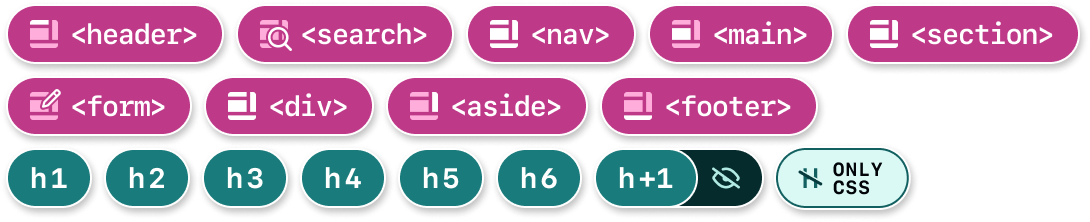
- Write out your heading structure without content, as shown in Priority Guides - A List Apart.
Annotations that can help
Suggested Tools
- Page Region tutorial - W3C WAI
- HeadingsMap browser extension to check the hierarchy of an existing site.
3. Content
Exercises
- Read the copy out loud yourself, or by utilizing Immersive Reader or Text to Speech (see the following links).
Annotations that can help

Suggested Tools
- Hemingway Editor or Readability Analyzer
- Microsoft Edge’s Immersive Reader - Microsoft
- MacOS’s Text to Speech - University of Calgary. Includes other speech to text resources as well!
4. Images, graphics, and other media
Annotations that can help

Exercises
- Figure out if an image needs a description using W3C’s alt-text decision tree.
- Annotate any images that are purely decorative.
Resources
- Alt Text Guide - GitHub Workplace Accessibility
- Your Image Is Probably Not Decorative - Smashing Magazine
- Images Tutorial - Web Accessibility Initiative (W3C)
- Functional Images - Web Accessibility Initiative (W3C)
- Dungeons & Dragons taught me how to write alt text - Eric Bailey
5. Interactivity
Annotations that can help

Resources
6. Forms
Annotations that can help
- Label, Input, etc. (Form Element)
<form>Landmark

Resources
7. Layout
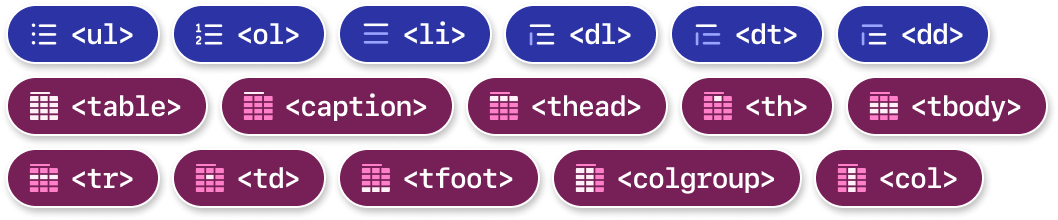
Annotations that can help
8. Keyboard
Annotations that can help
- Focus Order (Ordering)
- Arrow Stop (Ordering)
- Keyboard Shortcut (User Interactions)

Additional Resources
Here are some additional checklists that can be tailored to specific functions and job roles (other than just design and engineering):
- Vox Media Accessibility Checklist: Splits checklist by function--design, engineering, project management, QA, and editorial/content.
- Intopia’s Not-Checklist: We appreciated the job role filtering (visual, content, UX design, and video production).